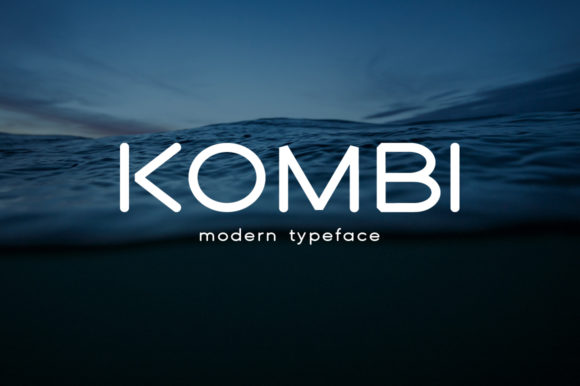
Kombi: A Light, Contemporary Font That Delivers Modern Clarity
Kombi isn’t just another sans-serif—it’s a carefully balanced typeface designed for readability, rhythm, and quiet confidence. With its clean lines, open counters, and subtle geometric warmth, Kombi brings a slick and cool feel to interfaces, branding, editorial layouts, and digital content—without sacrificing legibility or personality. Whether you’re crafting a landing page, designing a presentation, building a Shopify store, or refining a newsletter template, Kombi adds a modern twist that feels intentional, not trendy.
What People Often Misunderstand About Kombi
Many assume Kombi is “just a free Google Font” or confuse it with similarly named families like Komika or Kumbh Sans. It’s neither. Kombi is a commercial font family developed by Indian type foundry Typotheque, available through licensing—not free downloads. That distinction matters: using an unlicensed version risks legal exposure, inconsistent rendering, missing weights, and no technical support.
Another common oversight? Assuming Kombi works equally well at all sizes and contexts. Its lightness and contemporary proportions shine in headings, UI labels, and short-form copy—but extended body text (especially below 16px) can strain readability on lower-resolution screens or in long-form articles. It’s not a drop-in replacement for robust text fonts like Inter, IBM Plex Sans, or Source Sans Pro.
Mistake 1: Using Kombi Without Checking Weight Availability
Kombi offers seven weights—from Thin to Black—with matching italics. But not every platform or license includes the full set. Some webfont plans limit you to three or four weights; desktop licenses may exclude variable axes. If you’ve planned a bold headline + medium subhead + light caption hierarchy but only licensed the Regular and Bold weights, your visual system collapses.
Better approach: Before purchasing or embedding, verify which weights are included in your plan—and test them in context. Try setting real copy (not lorem ipsum) across devices. Notice how Kombi Thin holds up in small footer text, or whether Kombi Black overwhelms a compact button label.
Mistake 2: Ignoring Language Support and OpenType Features
Kombi supports Latin, Greek, and Cyrillic scripts—and includes essential OpenType features like ligatures, case-sensitive forms, and proportional figures. But if your audience includes multilingual users (e.g., Spanish, Polish, or Turkish speakers), check whether diacritics render cleanly. Some early webfont builds had inconsistent accent placement, especially in italic variants.
Better approach: Test actual words—not just character charts. Type “café”, “naïve”, “Łódź”, and “Москва” in your design tool or browser. Adjust tracking and line height as needed; Kombi’s airy spacing benefits from slight tightening in dense UIs. Enable font-feature-settings: "liga", "case" in CSS where supported for refined typographic control.
Mistake 3: Pairing Kombi With Overly Decorative or Low-Contrast Fonts
Kombi thrives alongside typefaces that complement—not compete—with its clarity. Pairing it with ultra-thin serifs, distressed display fonts, or monospaced code fonts without intention often creates visual dissonance. Similarly, pairing Kombi Light with a heavy, low-contrast sans like Helvetica Neue UltraLight blurs hierarchy instead of reinforcing it.
Better approach: Choose pairings with clear contrast in weight, proportion, or tone. For example:
- Kombi Bold + IBM Plex Serif (for editorial balance)
- Kombi Medium + Inter (for functional UI systems)
- Kombi Regular + Work Sans (for friendly, accessible body copy)
Before You License or Implement Kombi: Four Things to Check
1. Your Use Case Matches the License Tier. Typotheque offers desktop, web, app, and ePub licenses—each with different usage caps (e.g., monthly pageviews for web fonts). A freelance designer building five client sites per year needs a different plan than a SaaS company serving 2M users monthly. Overspending on an enterprise license—or under-licensing for scale—creates friction later.
2. Rendering Performance Is Verified. Kombi is well-hinted, but font loading strategy still matters. Self-hosting gives you control over font-display: swap and preloading critical weights. Relying solely on third-party CDNs without fallbacks risks invisible text or layout shifts—especially on slower connections.
3. Accessibility Requirements Are Met. Kombi passes WCAG contrast guidelines at standard sizes when paired with appropriate background colors (e.g., #333 on #fff). But avoid using Kombi Light on light gray backgrounds—even if technically compliant, it reduces perceived contrast for dyslexic readers or those with low vision. Always test with browser extensions like axe or Lighthouse.
4. Version Consistency Is Confirmed. Typotheque updates Kombi periodically—fixing bugs, expanding language coverage, or refining metrics. If you’re working across teams or tools (Figma, Adobe apps, web dev), ensure everyone uses the same version. Outdated files cause subtle alignment issues and inconsistent kerning.
Realistic Expectations, Real Results
Kombi won’t magically fix poor typography habits—but it does reward thoughtful application. It’s not “easier” than other fonts; it’s more discerning. Its lightness invites precision. Its coolness demands intention. When used with care, it elevates brand voice without shouting, supports usability without sacrificing style, and adapts across media without losing identity.
If you’re evaluating Kombi for a project, start small: apply it to one high-impact element—a logo lockup, navigation bar, or hero headline—and observe how it behaves over time and across devices. Compare it not just to what looks similar, but to what serves your audience best. Modern doesn’t mean minimal. Cool doesn’t mean cold. And light doesn’t mean lightweight in purpose.
Choose Kombi when you want clarity with character—not just another font, but a deliberate part of how your message lands.